 Superkitchen
Save recipes from Instagram and TikTok: just tap Share
The reel was great. Two minutes later it’s gone, and the screenshot sits in your camera roll between a parking ticket and a child’s drawing. Since version 1.8 there’s a better way: tap “Share” on the post, then Superkitchen, done. The caption becomes a recipe with ingredients, instructions and a spot in your meal plan. Here’s what happens, what doesn’t work, and when a screenshot still helps.
Why “Save” in Instagram isn’t enough
Saved reels are a list without ingredients. The amounts are in the caption, sometimes in the video, sometimes nowhere. You can’t search them or plan with them, and if the account deletes the video, the recipe is gone. For the question “What should I cook tonight?”, a collection like that is about as useful as a cookbook without page numbers.
Option 1: the share sheet (since version 1.8)
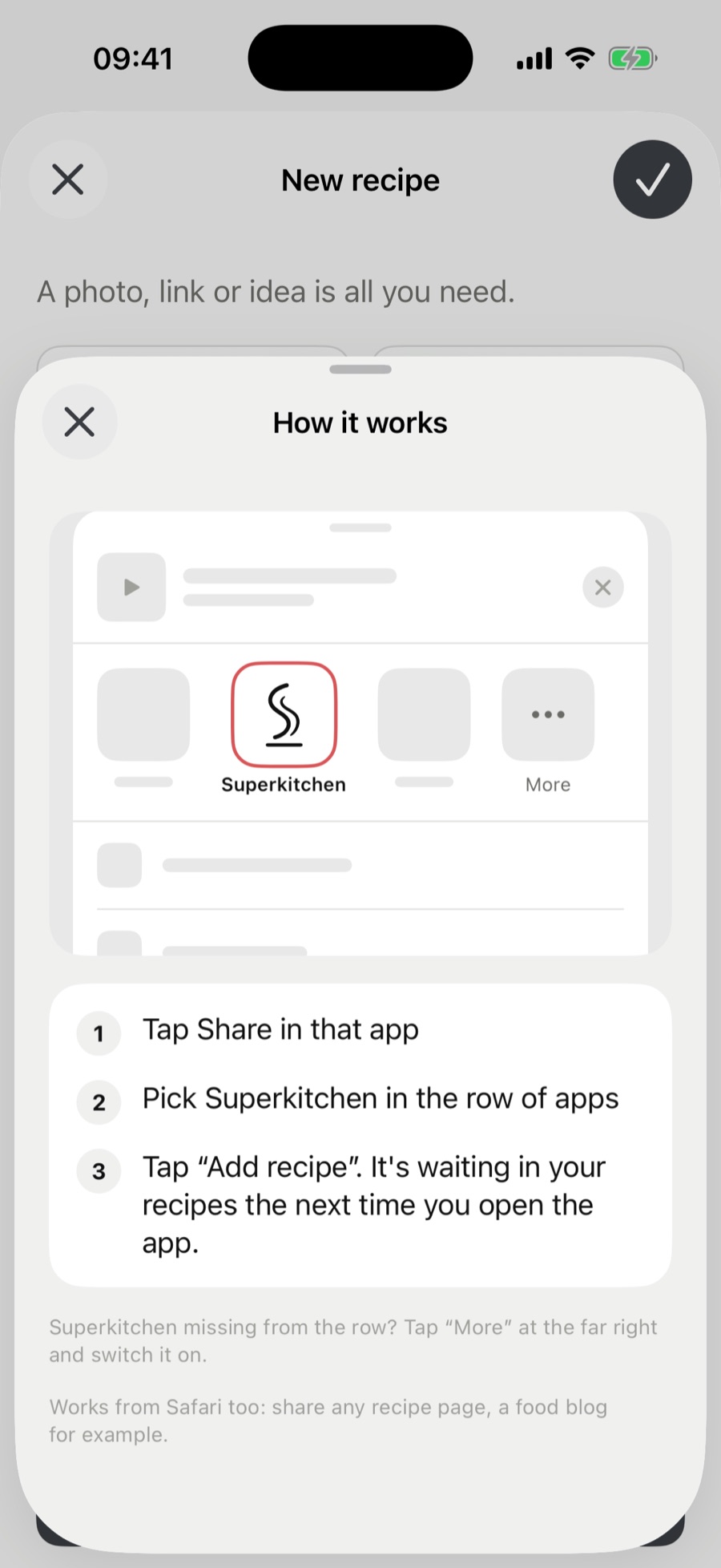
- On the Instagram or TikTok post, tap Share and pick Superkitchen in the row of apps. The first time, it might be hiding behind “More”.
- Superkitchen shows a preview: cover image, title, the creator’s handle and the first lines of the caption. If there’s an ingredient list in it, the preview says “Ingredients found”.
- Tap Create recipe. You stay in Instagram, and the recipe waits for you in Superkitchen.
- The next time you open the app, it turns into a draft: ingredients and amounts exactly as the caption has them, instructions in its own words, plus the cover image. You check it in three steps and keep it.
From then on, the recipe page shows “View on Instagram” with the handle, right below the instructions, and a small Instagram logo on the cover photo jumps straight to it. One tap opens the post in the Instagram app, so the video stays where it belongs. Superkitchen never downloads video or audio, only the public caption and the cover image, and it does that right on your iPhone, without a login and without a detour through our server.
Tip: Hashtags, “follow me” and discount codes from the caption stay out of the recipe. If the caption says “serves 2”, the recipe keeps 2 as its base, and the people control on the recipe page scales it up when four of you are eating.
Option 2: paste the link
Copy the link, open Superkitchen, tap New recipe and paste it into “Recipe link”. For Instagram and TikTok, the app fetches the caption and cover image itself; for recipe websites and food blogs, it reads the page. Either way, the ingredients arrive in your units, the instructions are written in its own words, and the picture from the page stays private in your kitchen.
YouTube, Facebook and Pinterest don’t hand over their content. The link still goes on the recipe; for the ingredients and instructions, take option 3.
Option 3: screenshots (for stories, private accounts and “the recipe is in the video”)
- A screenshot of the finished dish, ideally the frame where the plate is easy to see.
- A screenshot of the ingredients, if they’re shown on screen. This is the important one, because that’s where the real amounts are.
- In Superkitchen, tap New recipe, add the screenshots as photos (up to three) and tap Add recipe at the bottom.
- Superkitchen reads whatever is readable: title, ingredients, amounts, steps. Anything that’s only in the picture gets estimated. Got it wrong? Tap Recipe recognized incorrectly, say briefly what’s off, and you get a new suggestion.
The screenshot route also works for cookbook pages and Grandma’s notes: one photo is enough, handwriting included.
And then: photo, plan, shopping
- Cover photo. The cover image from the post is private and only for your kitchen. If you want to share the recipe with friends, take your own photo or let “Create photo” make one (three credits).
- Plan it. “Cook on …” with Today, Tomorrow, Day after tomorrow or a date. The plan is visible to everyone in your kitchen.
- Shop for it. The recipe page shows “X of Y ingredients at home”, and the Shopping tab lists what your planned meals still need.
- Source. The link and the handle stay with the recipe, even when friends adopt it. So a year from now, you’ll still know who to thank.
Frequently asked questions
Can I import an Instagram or TikTok link directly?
Yes, since version 1.8. Tap “Share” and then “Superkitchen” on the post, or paste the link under “New recipe” in the app. Superkitchen reads the public caption and the cover image right on your iPhone. The ingredients come across exactly as written, the instructions in its own words. The video stays on Instagram or TikTok, and the link sits on the recipe. Stories, private accounts and recipes that only appear in the video still go the screenshot route.
What does it cost?
Reading the post is free. The suggestion with ingredients and instructions costs one credit; every new kitchen starts with 30, and the download is free. If you only want to keep the link with its cover image, switch off the automatic fill-in when you add it and fill in the rest yourself later.
Does it work with cookbooks or Grandma’s handwritten recipes?
Yes. A photo of the page or the note is enough, and the text gets transcribed, handwriting included. A photo of the finished dish without any text works too; then the amounts are estimated.
Am I allowed to save other people’s recipes?
For your own use, that’s fine. Superkitchen writes the instructions in its own words, the cover image from the post stays private in your kitchen, the video is never downloaded, and the link to the original sits on the recipe. In the Community, you only share your own recipes with your own photo or a generated image.